
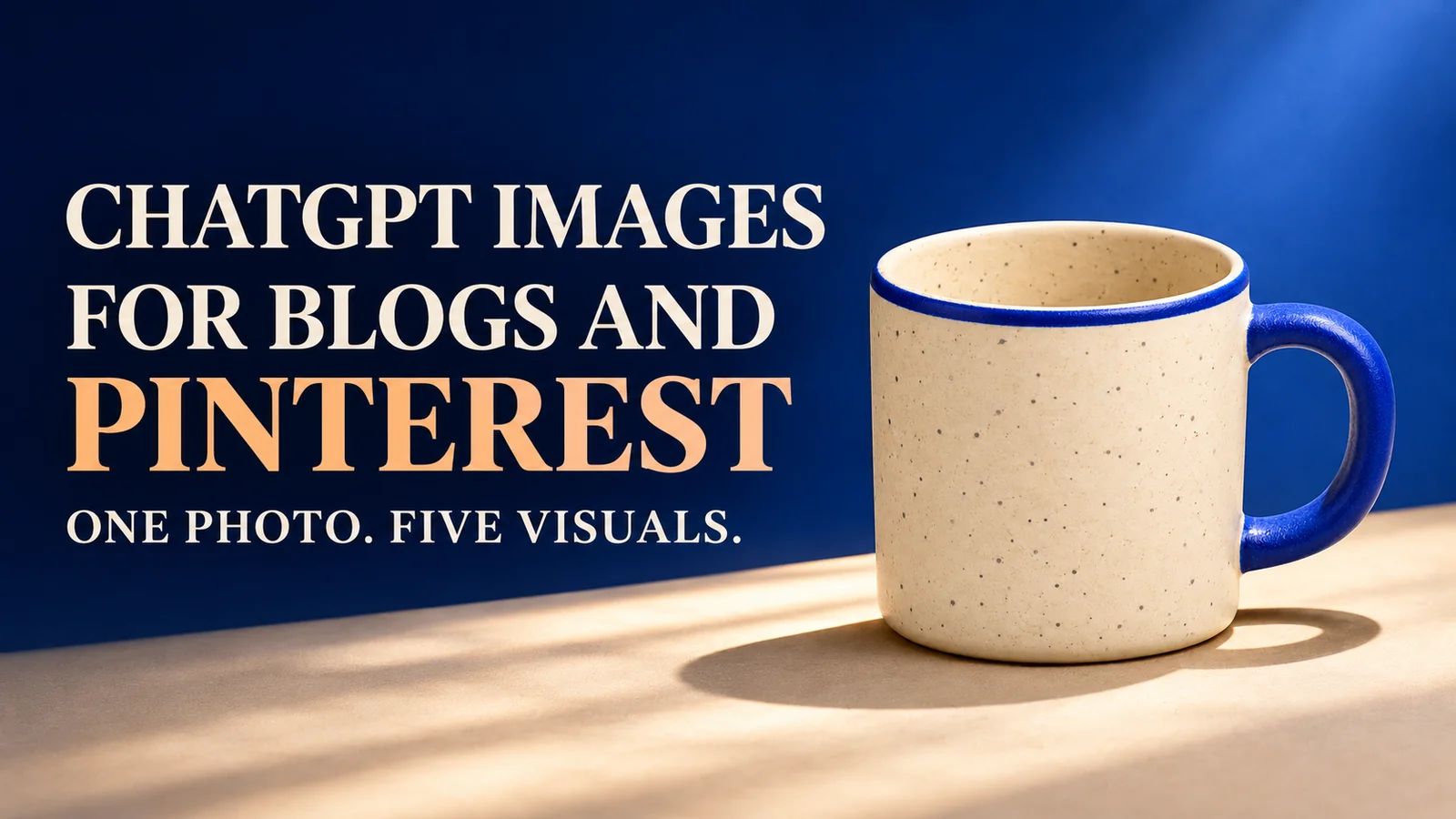
ChatGPT Images for Blogs and Pinterest gives creators a practical way to turn one approved reference image into multiple visual assets without rebuilding the entire creative direction from scratch.
A single source photo can become a 16:9 blog cover, several 2:3 Pinterest pins, edited campaign variations and even a short looping GIF.
The important part is not simply generating more images.
It is preserving the subject while changing the job each image needs to perform.
This guide shows how to use ChatGPT Images for Blogs and Pinterest with reusable reference photos, structured prompts, aspect-ratio planning, targeted image edits, Pinterest layouts, GIF creation and final publication checks.
You will also find copy-ready prompts based on one simple workflow: define what must stay consistent, change only what the new asset requires, inspect the result and correct visible mistakes before publishing.
OpenAI introduced Images 2.6 with faster generation, stronger consistency across edits and new GIF capabilities. You can review the official OpenAI Images 2.6 release.
For instructions covering image generation, editing, saved references and GIF creation inside ChatGPT, see the official OpenAI Images in ChatGPT guide.
What Is ChatGPT Images for Blogs and Pinterest?
ChatGPT Images for Blogs and Pinterest is a workflow for producing several useful publishing assets from one visual reference.
The starting point may be a product photo, an illustration, a character, an object or another image whose identity needs to remain recognizable.
Instead of asking for unrelated generations, you define what should stay fixed.
For the worked example in the companion guide, that source is one fictional ceramic mug.
Its important characteristics are simple:
- warm ivory ceramic body
- sparse dark speckles
- one narrow cobalt blue rim
- one cobalt blue D-shaped handle
- short cylindrical shape
The visual environment can change.
The product identity should not.
That distinction is what makes the workflow reusable.
A practical ChatGPT Images for Blogs and Pinterest project can include:
- one clean reference photo
- one landscape blog feature image
- three separate Pinterest pins
- one source still for animation
- one looping GIF
- corrected versions when an edit changes the subject
- optimized exports for the final publishing platform
The model, the reference image and the final deliverable are three different things.
Treating them separately makes the process easier to control.
🛡️ Protect your connection while using ChatGPT Images, uploading reference photos, creating blog visuals, designing Pinterest pins, generating GIFs and working with cloud-based creative tools through NordVPN for added privacy and security on public or shared networks.
How to Use ChatGPT Images for Blogs and Pinterest
A strong ChatGPT Images for Blogs and Pinterest workflow begins before the first prompt.
Define five things.
Reference: Which image defines the subject?
Preserve: Which visible details must stay unchanged?
Change: What exactly should be different in this version?
Output: What format, composition and aspect ratio do you need?
Review: What visible mistake would cause you to reject the result?
For example, avoid a vague request such as:
Make this mug into a Pinterest graphic.
Use a precise brief.
Prompt 1: Define the Reference Product
Use the attached image as the product reference. Preserve one short cylindrical mug, its warm ivory speckled ceramic body, its single thin cobalt blue rim band and its cobalt blue D-shaped handle on the viewer’s right. Do not change the mug’s proportions, material, rim colour, handle colour or general silhouette.
This opening can be reused in later prompts.
Only the destination, scene and layout need to change.
Save and Reuse a Reference Image
One of the most useful parts of ChatGPT Images for Blogs and Pinterest is the ability to work from the same source repeatedly.
If saved references are available in your ChatGPT account, upload the clean original image and give it a short recognizable name.
Do not save a finished Pinterest graphic as the master reference if the text, crop or background is not part of the core identity.
Use the clean source.
Prompt 2: Save the Reference
Save this uploaded image as a reference named BlueRimMug.
Later, the same reference can be called into a different conversation when supported.
Prompt 3: Reuse the Reference
Create a landscape 16:9 blog cover using @BlueRimMug as the product reference. Keep its ivory body, thin blue rim and blue handle unchanged.
If saved references are unavailable, attach the original source image again.
The principle stays the same.
The original image remains the source of truth.
ChatGPT Images for Blog Feature Images
Blog images have a different job from Pinterest pins.
A feature image usually needs a wide composition that works behind or near an article title.
That means the visual should not fill every part of the frame.
Negative space is useful.
Prompt 4: 16:9 Blog Cover
Use the attached reference image. Preserve the mug’s ivory speckled body, thin cobalt rim and cobalt handle.
Create one landscape 16:9 blog cover.
Place the complete mug in the right third on a warm oak tabletop. Use soft natural window light from the right.
Leave the left half calm and uncluttered with a pale cream wall so website text can be added later.
Keep the rim and handle completely inside the frame.
No text, logo, people, second mug, collage or watermark.
This prompt separates subject identity from page layout.
That is an important pattern throughout ChatGPT Images for Blogs and Pinterest.
Why Blog Covers Need Negative Space
A generated image can look attractive and still fail as a feature image.
If every corner contains an object, a texture or dramatic lighting, there may be nowhere to place a headline.
A cleaner composition is often more useful.
Prompt 5: Create More Headline Space
Edit the approved blog cover.
Keep the mug, tabletop, camera position, lighting direction and 16:9 framing unchanged.
Simplify only the left half of the background so it becomes a calm pale cream wall with enough empty space for a website headline.
Do not move or redesign the mug.
Do not add text.
This is safer than regenerating the entire image.
ChatGPT Images for Pinterest Pins
Pinterest requires a different composition.
A landscape blog cover should not simply be stretched into portrait format.
For ChatGPT Images for Blogs and Pinterest, create the Pinterest version separately or recompose the approved visual.
A common target is 2:3 portrait.
The guide examples use 1000 × 1500 pixels.
Prompt 6: Pinterest Pin — One Photo, Five Visuals
Use the attached product reference.
Create one portrait 2:3 Pinterest pin with a bright warm cream background.
Place the complete mug in the lower half on a light oak counter with soft morning shadows.
Add a large dark navy headline in the upper half:
ONE PHOTO
FIVE VISUALS
Use exactly those words.
Keep the mug and headline comfortably inside safe margins.
No logo, collage, border, extra object or additional wording.
This layout explains the main benefit immediately.
One source image can support several publishing assets.
Create a Different Scene Without Changing the Product
A common problem with reference-based generation is that the scene colour begins to affect the product itself.
A blue environment can accidentally produce a blue product.
The prompt should therefore distinguish the two.
Prompt 7: Pinterest Pin — Same Product, New Scene
Use the same reference image.
Create one portrait 2:3 Pinterest pin.
Place the mug below center on a muted lavender pedestal against a dusk-blue studio wall.
Keep the mug’s body warm ivory with sparse dark speckles.
Keep only the rim band and handle cobalt blue.
Use soft side lighting.
Add large ivory text in the upper third:
SAME MUG
NEW SCENE
No extra text, logo, second mug, border or collage.
The scene may change.
The product should not.
Pinterest Pin for a GIF Tutorial
The third Pinterest visual can introduce the motion section without trying to embed animation into the pin itself.
Prompt 8: Pinterest Pin — From Still to GIF
Create one portrait 2:3 Pinterest pin using the same reference product.
Place the complete mug in the lower half on a dusty apricot studio set.
Add one diagonal window shadow.
Keep the mug ivory with its blue rim and blue handle unchanged.
Use large dark navy text in the upper area:
FROM STILL
TO GIF
Keep the full handle visible.
No arrows, icons, logos, collage or additional words.
This gives each pin a different reason to exist.
That is better than publishing three nearly identical Pinterest images.
How to Write Better Pinterest Headlines
A Pinterest image should communicate quickly.
Long copy creates smaller type and weaker mobile readability.
For ChatGPT Images for Blogs and Pinterest, a useful pattern is:
Pin 1: communicate the overall benefit.
Pin 2: demonstrate consistency.
Pin 3: introduce a different capability.
The image and headline should work together.
Do not ask one pin to explain the entire article.
🛠️ Explore More Software Tools
Discover practical software solutions for productivity, development, content, and digital workflows with Wondershare.
Explore Wondershare ToolsAffiliate disclosure: We may earn a commission if you purchase through this link, at no extra cost to you.
Prompt 9: Simplify a Crowded Pin
Edit the attached Pinterest pin.
Keep the product, background, colours and portrait 2:3 framing unchanged.
Remove all secondary wording.
Keep only this headline:
ONE PHOTO
FIVE VISUALS
Increase the headline size while keeping safe margins.
Do not change the mug.
This type of narrow edit is easier to evaluate than a complete regeneration.
How to Keep a Reference Image Consistent
Consistency is one of the most important parts of ChatGPT Images for Blogs and Pinterest.
A result should be compared with the source before approval.
Check the silhouette first.
Then check:
- material
- colour
- rim
- handle
- proportions
- visible markings
- orientation
An attractive output is not automatically an accurate output.
Prompt 10: Identity Audit
Compare the generated image with the original reference.
Check the mug body colour, speckle pattern, blue rim, blue handle, shape and proportions.
Return a short list containing:
- matching details
- visible differences
- smallest correction required
Do not generate a new image yet.
This separates diagnosis from correction.
How to Repair a Product That Changed
A broad prompt can accidentally alter the subject.
For example, asking for a completely cobalt-blue campaign scene may cause both the background and the product to become blue.
The better correction is specific.
Prompt 11: Restore Product Identity
Image A is the generated blue campaign image.
Image B is the original product reference.
Edit Image A only.
Restore the outside and inside of the mug to the matte warm ivory ceramic with sparse dark speckles shown in Image B.
Keep one thin cobalt blue rim band and the cobalt blue D-shaped handle.
Preserve Image A’s camera angle, portrait framing, mug position, blue pedestal and blue background.
Do not add text, objects or another mug.
The goal is not a new image.
It is a targeted repair.
Edit One Region Instead of Regenerating Everything
When most of an image already works, broad instructions create unnecessary risk.
Change only the broken area.
Prompt 12: Repair One Detail
Edit only the mug handle.
Restore its shape and cobalt blue colour to match the attached product reference.
Keep the mug body, rim, background, camera, crop, lighting, shadow and typography exactly as they are.
Do not change any other region.
This is especially useful when a later edit introduces a small inconsistency.
ChatGPT GIF Creation From a Still Image
Images 2.6 also adds GIF creation in ChatGPT.
That gives ChatGPT Images for Blogs and Pinterest another potential output.
A simple GIF usually works better with one clear motion.
Do not ask every object to move independently.
Prompt 13: Create a Simple Looping GIF
Turn the attached approved still into a smooth looping GIF.
Push the camera in gently by approximately 4%, then return to the starting view.
Keep the mug, ivory ceramic, blue rim, blue handle, background and lighting unchanged.
Do not add steam, text or new objects.
Aim for a short loop with no visible jump when it repeats.
The companion guide demonstrates this concept with a three-second zoom loop.
The motion comes from the changing crop rather than changing the product itself.
How to Improve a GIF Loop
The loop needs to end where it began.
Otherwise viewers notice a sudden jump.
Prompt 14: Refine the Motion
Use the approved still.
Create a subtle looping camera movement.
Begin at the original framing, push in gently, hold briefly and return smoothly to the exact starting view.
Keep the product shape, colour, position, background and lighting fixed throughout the loop.
Do not introduce new objects or visual effects.
A restrained movement is often more useful for product visuals than dramatic animation.
ChatGPT Images Aspect Ratios
Do not stretch an image into a different format.
Recompose it.
The three most useful publishing targets in this workflow are:
- Blog feature: 16:9
- Pinterest: 2:3
- Motion source: 1:1 when appropriate
Prompt 15: Landscape to Pinterest Portrait
Recompose the approved landscape image as one portrait 2:3 Pinterest image.
Preserve the exact mug design, material, colours and lighting.
Keep the full mug in the lower half.
Extend the environment naturally above and below.
Leave the upper third calm for a headline.
Do not stretch, duplicate or crop the mug.
This protects the subject while adapting the frame.
Create a Second Blog Image That Is Actually Different
A feature image and an inside image should not be duplicates.
The inside image can explain the workflow rather than repeat the hero composition.
Prompt 16: Inside Article Image
Create one landscape 16:9 editorial image using the approved mug reference.
Place the mug slightly left of center on a neutral studio surface.
Show subtle visual cues of a creative workflow through paper crop guides and clean framing marks, but do not reproduce a software interface.
Keep the mug unchanged.
Use restrained lighting and enough visual separation for the image to work inside a tutorial article.
No logos, collage, readable interface text or extra mugs.
Now the article has two visuals with different jobs.
Check Pinterest Pins at Mobile Width
A pin that works at full resolution can fail when reduced.
The companion workflow recommends checking the final pin at roughly feed width.
For ChatGPT Images for Blogs and Pinterest, check:
- headline size
- headline contrast
- subject visibility
- safe margins
- product identity
- whether the image still communicates without zooming
Prompt 17: Mobile Readability Audit
Review the attached Pinterest pin as if it were displayed at small mobile width.
Check whether the headline remains readable, the entire mug is identifiable and the rim and handle remain visible.
Return:
PASS
FIX
or
UNCERTAIN
for headline, subject visibility, contrast and safe margins.
Do not redesign the pin yet.
Troubleshooting ChatGPT Images
When a generated image fails, identify the problem before requesting another version.
Do not say:
Make it better.
Explain what is wrong.
Prompt 18: Visual Troubleshooting Audit
Compare the attached result with the original reference and intended brief.
Return a short table with:
- visible mismatch
- evidence in the image
- smallest correction
Check product identity, crop, text, background, lighting and unwanted objects separately.
Do not generate another image.
This workflow is useful because it creates a correction plan before another generation can introduce new mistakes.
Remove One Unwanted Object
Sometimes one extra element ruins an otherwise good visual.
Do not rebuild the entire scene.
Prompt 19: Remove One Object
Edit the attached image only to remove the unwanted object beside the mug.
Reconstruct the tabletop and background naturally in that area.
Preserve the mug, rim, handle, text, colours, lighting, shadows, camera and composition.
Do not change any other object.
Small corrections are easier to approve.
Final Publication Audit
Generation is not the final step.
Verification is.
Prompt 20: Final Image Check
Review the attached final image for publication.
Check:
- visible spelling
- clipped text
- subject consistency
- unwanted objects
- unusual geometry
- implausible shadows
- incorrect product colours
- crop safety
Return PASS, FIX or UNCERTAIN for each category with a short reason.
Then write one accurate alt-text sentence describing only what is visibly present.
Do not infer file size, dimensions, licensing rights or metadata from appearance alone.
Export ChatGPT Images for Blogs and Pinterest
The worked example uses separate files for every publishing destination.
That is important.
Do not export one master composition and stretch it everywhere.
Useful targets include:
Blog feature image:
1600 × 900 px
Pinterest pin:
1000 × 1500 px
GIF example:
Square when the animation is designed for a compact loop
For website publishing, keep a high-quality master and create an optimized WebP version where appropriate.
The example guide demonstrates a 1600 × 900 WebP blog cover under 100 KB while retaining the PNG master.
Always inspect the compressed result.
Small text, object edges and subtle gradients can degrade first.
ChatGPT Images for Blogs and Pinterest Prepublish Checklist
Before publishing any ChatGPT Images for Blogs and Pinterest asset, run five checks.
1. Check Identity
Compare the final visual against the original reference.
Verify the subject shape, material, colours and defining features.
2. Check the Frame
Confirm that the actual export uses the intended ratio.
Do not rely only on what you requested in the prompt.
3. Check the Words
Read all generated lettering.
Check every character.
Pinterest headlines should also be tested at mobile width.
4. Check the GIF
Watch several complete repetitions.
Look for jumps, changing product details, accidental crops or lighting shifts.
5. Check the Destination
Preview the image inside the actual article or Pinterest layout.
Test the destination link before publishing.
Keep the source image and useful prompts together so the workflow can be reproduced later.
Common ChatGPT Images Mistakes
Several mistakes can weaken ChatGPT Images for Blogs and Pinterest even when the image initially looks attractive.
The first is changing too many things at once.
If you alter colour, scene, crop, product and typography in one request, it becomes difficult to identify what caused a problem.
The second is failing to separate the subject from the environment.
A blue campaign should not automatically create a blue product.
The third is using a finished derivative as the only reference when the original source is available.
The original image should define identity.
The fourth is stretching one format into another.
Recompose landscape work for Pinterest.
The fifth is approving generated text without reading it.
Always proofread.
ChatGPT Images 2.6 Limitations to Remember
ChatGPT Images for Blogs and Pinterest is still a generative workflow.
Outputs should be reviewed.
Consistency can improve across edits without becoming perfectly deterministic.
Generated typography can still require correction.
Small subject details may change.
A new background can influence perceived product colour.
A sequence of edits can introduce new differences even after an earlier version was accurate.
GIF generation also benefits from simple motion.
The more independent movement you request, the harder the loop becomes to verify.
For exact logos, regulated text, prices or legally important wording, editable design software may still be preferable for the final typography layer.
The strongest workflow is therefore not:
generate → publish.
It is:
reference → brief → generate → compare → repair → export → verify.
How Creators Can Use ChatGPT Images for Blogs and Pinterest
The workflow can be adapted far beyond the mug example.
A blogger can create a feature image and matching pins from one approved visual.
A small business can use a product photo as the identity reference while changing the campaign scene.
A Pinterest creator can build several portrait concepts without losing the original product.
A tutorial creator can create an article image, social graphic and short animation from the same reference.
A marketer can test different settings while keeping the subject consistent.
The key is giving each output one job.
Do not create five versions simply because five versions are possible.
Create five versions because they serve five different placements.
Four Reusable ChatGPT Images Prompt Frameworks
The companion guide also provides four short frameworks that can be adapted quickly.
Leave Room for Copy
Using [reference], create one 16:9 cover with [subject] on the right. Preserve [identity details]. Keep the left half quiet and free of text.
Make a New Pin
Use the same reference. Create one 2:3 image in [scene]. Preserve [identity details]. Use only this headline: [exact words]. Keep the full subject visible.
Edit One Region
Edit only [region] to restore [reference detail]. Keep the camera, crop, background, typography and all other subject details unchanged.
Refine Motion
Use [approved still]. Create a subtle [one movement] loop. Keep the subject shape, colour and background fixed. Return smoothly to the starting view.
These templates make ChatGPT Images for Blogs and Pinterest easier to reuse with a new product, character or visual subject.
More AI Guides
Video creators can continue with our CapCut AI Short-Form Video Content Guide for practical editing and short-video workflows.
Explore Google’s latest AI ecosystem in our Gemini 4 Argon Practical Guide.
For another creative AI workflow, read our Meta Muse AI Guide.
Developers and AI users can also explore our Claude Haiku 5.5 Guide.
For research, source organization and notebook workflows, see our Gemini Notebook Practical Guide.
For another hands-on image generation workflow with product photography, Pinterest graphics and editing prompts, continue with our Nano Banana 2.1 Practical AI Image Guide.

Final ChatGPT Images for Blogs and Pinterest Guide
ChatGPT Images for Blogs and Pinterest works best when one reliable source image anchors the entire workflow.
Start with a clear reference.
Identify the characteristics that must remain unchanged.
Give every new visual a specific purpose.
Build the blog cover for the blog.
Build each Pinterest pin for a different message.
Use a separate approved still for motion.
When something changes unexpectedly, do not automatically regenerate the entire asset.
Compare it with the source and repair the smallest visible problem.
Then inspect the exported file rather than trusting only the generation preview.
The core process is simple:
one reference → multiple purposeful outputs → individual review → targeted corrections → final export.
That approach creates a much more repeatable ChatGPT Images for Blogs and Pinterest workflow than random prompting.
Access the Full ChatGPT Images for Blogs and Pinterest PDF
The complete 20-page ChatGPT Images for Blogs and Pinterest PDF turns the workflow into a visual step-by-step reference.
It includes the original fictional mug reference, the 16:9 blog cover, three separate Pinterest examples, their exact prompts, pin titles, descriptions and alt text, reference-image instructions, identity checks, a failed product-colour example and the corrected version.
The guide also includes the GIF workflow, a real three-second loop example, export dimensions, file-size examples, four reusable prompt frameworks and a prepublish checklist.
You can keep the PDF open while producing your own assets and replace the mug example with your product, character, illustration or other approved reference.
Use it when you want the entire ChatGPT Images for Blogs and Pinterest workflow in one downloadable resource instead of rebuilding prompts and review steps for every new project.

Help Us Create More Valuable Resources
Digital World Pulse creates practical guides, in-depth analysis, useful tools, and downloadable resources available to everyone. Every article and resource requires time, research, hosting, and ongoing development.


If you found our content helpful, you can support our work through PayPal or Revolut. Your contribution is completely optional, and any amount—even the price of a coffee —helps us remain independent and continue creating useful, high-quality resources.
Thank you for supporting Digital World Pulse and helping us keep improving what we create.
Our AI and technology content is developed through hands-on testing, official documentation review, product research, software evaluation, and workflow verification where applicable.
Where applicable, prompts, workflows, software features, and processes are tested directly before publication to verify how they work in real-world use.
Yes. AI tools and software platforms can change quickly, including interfaces, features, model capabilities, usage limits, and pricing.
Yes. AI-generated output can be incomplete, inconsistent, or inaccurate, so important results should be reviewed and verified by a human.
Articles may be updated when important changes occur to tools, interfaces, pricing, model capabilities, software behavior, or workflows.