
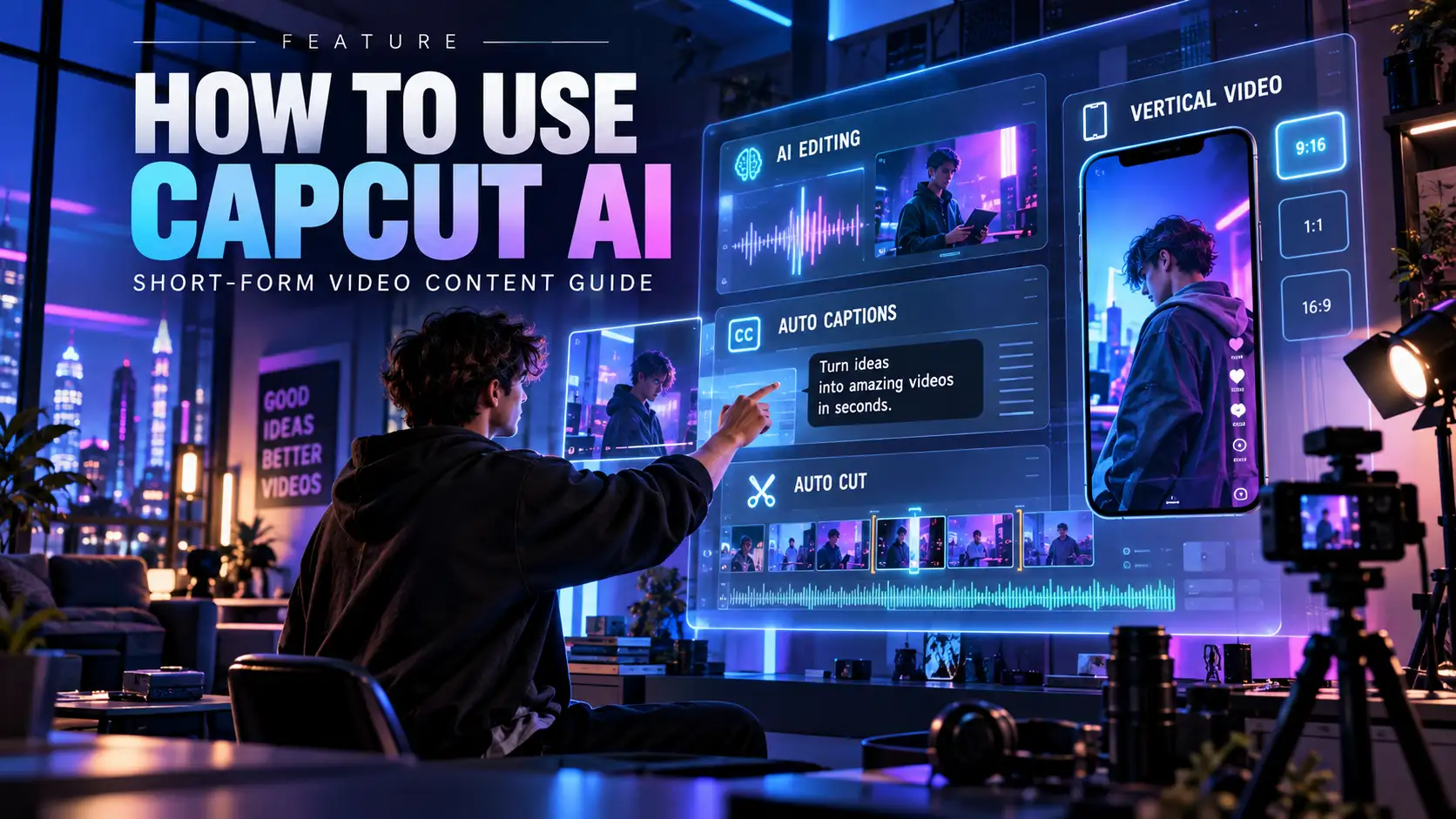
Learning How to Use CapCut AI for Short-Form Video Content can dramatically simplify the process of turning an idea into a finished vertical video. Instead of handling scripting, captions, narration, scene planning and formatting as completely separate jobs, creators can use CapCut AI tools to accelerate several stages of the workflow while still keeping editorial control.
The important part is not asking AI to “make a viral video.” A better workflow starts with a clear idea, develops a strong hook, turns that idea into short scenes, adds suitable visuals and narration, and then uses AI to remove repetitive editing work.
This guide explains How to Use CapCut AI for Short-Form Video Content for YouTube Shorts, TikTok and Instagram Reels. You will learn how to create scripts, build vertical videos, generate captions, use AI voiceovers, repurpose long-form content and improve the final edit.
You will also find practical prompts that can be adapted for tutorials, educational content, faceless videos, product explainers and social media clips.
What CapCut AI Can Do for Short-Form Video Content
Before building a video, it helps to understand where AI actually saves time.
CapCut can assist with script generation, script-to-video workflows, scene creation, text-to-speech, captions, vertical formatting and other repetitive editing tasks. The precise tools displayed may differ between CapCut versions or regions, so creators should treat AI as part of the editing workflow rather than expecting every interface to look identical.
For creators learning How to Use CapCut AI for Short-Form Video Content, the biggest benefit is speed.
Instead of manually moving through every production stage, you can begin with a topic, create a draft script, generate or organize scenes, add a voice track, generate subtitles and then focus your manual editing time on the parts viewers actually notice.
CapCut’s official script-to-video workflow guide also emphasizes reviewing generated scenes instead of treating the first AI draft as finished.
That distinction matters.
AI can accelerate production. It should not replace fact-checking, pacing decisions or your own creative judgment.
Step 1: Start With One Clear Short-Form Video Idea
The first mistake many creators make is starting inside the editor without deciding what the video is actually trying to accomplish.
A short video should normally communicate one central idea.
If your topic requires five unrelated explanations, it probably needs multiple Shorts rather than one overloaded video.
A practical How to Use CapCut AI for Short-Form Video Content workflow begins with four questions:
What is the topic?
Who is the video for?
What should the viewer learn or feel?
What should the viewer remember after 30–60 seconds?
Once those answers are clear, create the script.
Prompt 1 — Short-Form Video Idea
Create 10 short-form video ideas about [TOPIC] for [TARGET AUDIENCE]. Each idea should communicate one clear takeaway and work as a 30–45 second TikTok, Instagram Reel or YouTube Short. Avoid misleading clickbait and make each idea specific enough to explain visually.
This is useful when you know your niche but do not yet know which angle to cover.
Create and edit short-form videos faster with CapCut for mobile, including AI-assisted tools for captions, voiceovers and vertical video workflows.
Step 2: Generate a Strong Hook Before the Full Script
The opening matters because short-form viewers can leave immediately.
Do not begin with a long introduction such as “Hi everyone, today we are going to talk about…”
Start directly with the value, question, problem or surprising observation.
When learning How to Use CapCut AI for Short-Form Video Content, creating the hook before the rest of the script helps prevent AI from producing slow introductions.
Prompt 2 — Generate Hooks
Write 10 hooks for a short-form video about [TOPIC]. Each hook must be under 12 words, immediately communicate curiosity or value, avoid exaggerated claims, and sound natural when spoken aloud.
Prompt 3 — Educational Hook
Write five opening lines for a 30-second educational video about [TOPIC]. Assume the viewer knows very little about the subject. Start with the most useful or surprising information instead of introducing the presenter.
Choose one hook and build the rest of the script around it.
Step 3: Create a 30–60 Second Script
Now turn the idea into a complete short script.
The script should be easy to speak and easy to visualize.
Avoid writing it like a blog paragraph.
Short sentences usually work better because they provide obvious places for cuts, captions and visual changes.
For How to Use CapCut AI for Short-Form Video Content, a simple structure works well:
Hook → Context → Main Point → Supporting Points → Takeaway → CTA
Prompt 4 — Complete Short Script
Create a 40-second YouTube Short script about [TOPIC]. Start with a strong hook in the first sentence. Explain three useful points using short conversational sentences. Remove filler and unnecessary introductions. End with one clear takeaway and a simple call to action. Keep the language natural enough to speak aloud.
Prompt 5 — TikTok Script
Write a TikTok script about [TOPIC] that can be spoken in approximately 35 seconds. Start immediately with the problem. Explain the solution in three quick steps. Use conversational language and short sentences. Do not use exaggerated promises or fake urgency.
Prompt 6 — Instagram Reel Script
Create a 30-second Instagram Reel script about [TOPIC]. Structure it as hook, problem, solution and final takeaway. Include short on-screen text suggestions for each part.
At this stage, read the script aloud once.
Any sentence that feels unnatural when spoken should be rewritten before you generate the video.
Step 4: Turn the Script Into Visual Scenes
One of the most useful techniques when learning How to Use CapCut AI for Short-Form Video Content is breaking the script into visual beats before generating footage.
A 40-second video should not normally display the same visual for 40 seconds.
Each new idea can become a new scene.
For example:
Hook → Scene 1
Problem → Scene 2
Example → Scene 3
Solution → Scene 4
Result → Scene 5
CTA → Scene 6
Prompt 7 — Scene Planner
Break this short-form script into 6 visual scenes. For each scene provide: spoken narration, on-screen text, suggested visual or B-roll, and approximate duration. Keep each scene visually distinct and make sure the visuals support what is being said rather than simply decorating the screen.
SCRIPT: [PASTE SCRIPT]
This type of scene plan makes How to Use CapCut AI for Short-Form Video Content much easier because you are giving the AI clear visual instructions instead of asking it to interpret an entire paragraph.
Step 5: Use CapCut Script-to-Video or AI Video Tools
Once the script and scenes are ready, move into CapCut.
Depending on the CapCut version available to you, you may see tools such as AI Video Maker, Instant AI Video or Script to Video.
The general workflow is similar:
Enter or paste the script.
Choose the relevant format.
Select a visual style where available.
Choose voice or narration options.
Generate the initial video.
Then open the result in the editor and review every scene.
The critical part of How to Use CapCut AI for Short-Form Video Content is the last step: review the generated result manually.
Do not assume an AI-selected stock clip is correct simply because it looks professional.
If the narration says “mobile editing” and the generated visual shows unrelated desktop software, replace it.
Step 6: Create Faceless Short-Form Videos
CapCut AI can be particularly useful for creators who do not want to appear on camera.
A faceless video can combine:
AI narration
B-roll
screen recordings
text overlays
graphics
captions
product footage
screenshots
simple animations
This gives creators another practical way to apply How to Use CapCut AI for Short-Form Video Content without needing a studio or presenter.
Prompt 8 — Faceless Video
Create a 45-second faceless video script about [TOPIC]. Divide it into 7 scenes. For each scene include narration, visual direction, on-screen text and suggested B-roll. Make the first three seconds visually strong and keep every scene directly related to the narration.
Prompt 9 — Faceless Tutorial
Turn [TOPIC] into a faceless vertical tutorial. Use six short steps. Each step should include one spoken sentence, one visual suggestion and a caption of no more than eight words.
This format works especially well for software guides, AI tutorials, productivity content and educational Shorts.
Creators interested in broader AI workflows can also read our AI Agents for Beginners 2026 guide.
Step 7: Add AI Voiceover or Text-to-Speech
Voiceover can save substantial production time, particularly for faceless videos.
When using text-to-speech, do not paste a massive paragraph and expect natural pacing.
Break narration into short sentences.
Preview names, technical terms and numbers.
If the pronunciation is wrong, rewrite the phrase phonetically or choose another wording.
A useful How to Use CapCut AI for Short-Form Video Content approach is generating the voice scene by scene instead of treating the entire video as one continuous audio block.
Prompt 10 — Voiceover Rewrite
Rewrite this script specifically for AI text-to-speech. Use short sentences, natural pauses and simple pronunciation. Keep the meaning unchanged. Avoid complicated sentence structures and make the narration sound conversational rather than formal.
SCRIPT: [PASTE SCRIPT]
This can make automated narration sound significantly more natural.
Step 8: Generate and Edit Auto Captions
Captions are particularly valuable in short-form content because viewers may watch videos with low volume or no sound.
CapCut provides an Auto Captions workflow that analyzes spoken audio and creates synchronized subtitles. CapCut’s official Auto Captions help guide explains the current caption-generation process across supported platforms.
For How to Use CapCut AI for Short-Form Video Content, the important word is edit.
Do not simply generate captions and publish.
Check:
names
numbers
brand names
technical terms
punctuation
timing
line breaks
Keep captions easy to scan.
Very long subtitle blocks can cover too much of a vertical screen.
Prompt 11 — Caption Shortener
Convert this narration into short on-screen captions. Keep each caption concise and easy to read on a vertical phone screen. Preserve important names and numbers. Remove filler words when they are not necessary for understanding.
NARRATION: [PASTE TEXT]
Step 9: Format the Video for 9:16 Vertical Content
TikTok, Instagram Reels and YouTube Shorts are primarily vertical experiences.
For most short-form projects, use 9:16 as the working aspect ratio.
But formatting is more than changing the canvas.
Check whether the main subject remains visible.
Make sure captions are not too close to the bottom where app controls can overlap them.
Avoid placing critical text at the extreme top or sides.
When practicing How to Use CapCut AI for Short-Form Video Content, always preview the video on a phone-sized display before export.
A shot that looks perfectly framed on a desktop monitor can feel cramped on a mobile screen.
Step 10: Improve Pacing With Cuts and Visual Changes
AI can assemble clips quickly, but pacing still requires human judgment.
Watch the video once without editing.
Whenever your attention drops, mark that point.
You may need:
a new shot
a tighter crop
a caption change
a B-roll insert
a screen recording
a zoom
a graphic
a shorter sentence
Do not add effects merely because they exist.
Good How to Use CapCut AI for Short-Form Video Content editing should make the information easier to follow, not make the screen constantly move.
For educational Shorts, clarity usually matters more than excessive transitions.
Step 11: Turn Long Videos Into Shorts
You do not always need to start from zero.
Podcasts, interviews, webinars, tutorials and long YouTube videos can become multiple short-form clips.
Start by identifying one self-contained idea.
Do not try to compress an entire 15-minute video into 30 seconds.
Prompt 12 — Long Video to Short
Turn the following long-form transcript into a 40-second vertical video script. Identify the strongest standalone idea. Start with the most interesting statement, remove unnecessary context, preserve the original meaning and finish with one clear takeaway.
TRANSCRIPT: [PASTE TRANSCRIPT]
Prompt 13 — Find Multiple Shorts
Analyze this transcript and identify 10 independent short-form video ideas. For each one provide a hook, the main takeaway and the section of the transcript that should be used. Each idea should make sense without requiring the viewer to watch the original long video.
This is one of the most efficient applications of How to Use CapCut AI for Short-Form Video Content because one long piece of content can supply multiple focused clips.
For a broader look at automation systems behind modern AI workflows, see our AI Computer Use 2026 guide.
Step 12: Create Platform-Specific Versions
Do not assume that one version is automatically perfect everywhere.
The core video may remain the same, but the opening text, CTA and caption can change.
YouTube Shorts
Focus strongly on the searchable topic and immediate payoff.
TikTok
The opening can feel more conversational and trend-aware, while still avoiding forced clickbait.
Instagram Reels
Visual polish and shareable educational takeaways can be particularly useful.
Prompt 14 — Three Platform Versions
Rewrite this short-form script into three versions: YouTube Shorts, TikTok and Instagram Reels. Keep the factual information identical but adapt the opening hook, pacing and final CTA to each platform. Keep every version under 45 seconds.
This lets one How to Use CapCut AI for Short-Form Video Content workflow create several platform-native outputs without rewriting everything manually.
Step 13: Create Better Calls to Action
A CTA does not need to sound aggressive.
Instead of:
“FOLLOW RIGHT NOW OR YOU WILL MISS OUT!”
use something useful and relevant.
Examples:
“Save this workflow for your next Short.”
“Follow for more editing tutorials.”
“Read the full guide for the complete workflow.”
“Try this prompt on your next video.”
Prompt 15 — Natural CTA Generator
Write 10 short calls to action for a video about [TOPIC]. Keep them natural, specific and non-pushy. Avoid fake urgency, exaggerated promises and generic phrases.
This approach also keeps How to Use CapCut AI for Short-Form Video Content aligned with a cleaner educational style rather than aggressive marketing.
A Complete CapCut AI Short-Form Workflow
If you want one repeatable process, use this:
1. Choose one topic.
Define one takeaway.
2. Generate hooks.
Select the strongest opening rather than automatically using the first AI suggestion.
3. Write a 30–60 second script.
Keep sentences short.
4. Divide the script into scenes.
Give each idea a visual purpose.
5. Generate the initial video in CapCut.
Use the script-led or AI video workflow available in your version.
6. Replace weak AI visuals.
Check whether every clip actually matches the narration.
7. Add or refine voiceover.
Keep pronunciation and pacing natural.
8. Generate captions.
Proofread them manually.
9. Edit vertically in 9:16.
Protect important visual areas from interface overlays.
10. Tighten pacing.
Remove every pause or scene that does not help the viewer.
11. Preview on mobile.
Check text size, framing and caption placement.
12. Export and review again.
Do one final watch before publishing.
Following this sequence makes How to Use CapCut AI for Short-Form Video Content much more predictable than repeatedly pressing AI generation buttons and hoping for a finished result.
Common CapCut AI Mistakes to Avoid
The first common mistake is using the generated script without editing it.
AI scripts can repeat ideas, add generic introductions or produce language that sounds unnatural aloud.
The second is accepting every generated visual.
A beautiful clip is still wrong if it does not support the narration.
The third mistake is ignoring captions.
Automatic speech recognition can misunderstand names, technical terms or numbers.
The fourth is over-editing.
Too many effects can make an educational video harder to understand.
The fifth is forgetting fact-checking.
Using How to Use CapCut AI for Short-Form Video Content efficiently does not mean delegating factual responsibility to AI.
Creators working with more advanced AI systems may also find our AI Coding Agents in 2026 guide useful, along with our explanation of the OpenAI Agents API 2026.
How AI Fits Into a Broader Content Strategy
Short-form video works best when it supports a wider content system.
A single researched article can become:
one long video
three Shorts
several social posts
a Reel
a TikTok
a newsletter section
a visual tutorial
That makes How to Use CapCut AI for Short-Form Video Content useful beyond video editing itself. It becomes a content repurposing workflow.
AI can reduce the repetitive work between formats while the creator remains responsible for the core idea and final quality.
If organic discovery is also part of your strategy, our Google AI Overviews SEO 2026 guide examines another area where AI is changing how digital content is discovered.
Responsible AI Editing and Content Review
Creators should review AI-generated media before publishing.
Check whether the visual accurately represents the topic.
Verify factual claims.
Avoid presenting generated material as documentary evidence when it is not.
Be especially careful with synthetic voices, avatars, public figures and sensitive topics.
An effective How to Use CapCut AI for Short-Form Video Content workflow should increase production efficiency without sacrificing transparency or accuracy.
Similar principles matter when AI tools gain broader permissions and automation capabilities. Our AI Agents Security 2026 guide covers permissions, sandboxing and safer automation practices in more advanced AI workflows.
CapCut AI Workflows for YouTube Shorts, TikTok and Instagram Reels
A good How to Use CapCut AI for Short-Form Video Content workflow should change slightly depending on where the video will be published. YouTube Shorts, TikTok and Instagram Reels all use vertical video, but viewers interact with each platform differently. That means the same raw clip can often be reused, while the hook, pacing, captions and final call to action are adjusted for the platform.
CapCut AI Short-Form Video Workflow
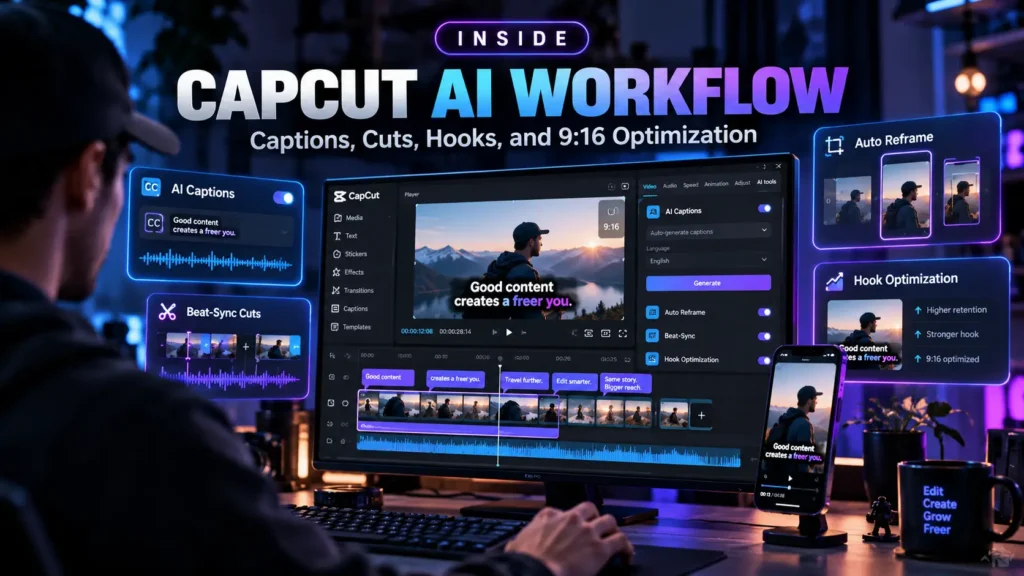
A practical CapCut AI short-form video workflow begins with one clear idea rather than a long list of topics. Start with a single takeaway, create a short script, divide it into visual scenes and then use CapCut AI tools to speed up captions, voiceovers and repetitive editing.
When learning How to Use CapCut AI for Short-Form Video Content, it helps to treat AI as a production assistant rather than a one-click creator. Generate the first draft quickly, then improve the parts that directly affect retention: the opening seconds, scene changes, readable captions and the final takeaway.
For most short-form projects, the workflow can remain simple:
Idea → Hook → Script → Scenes → Voiceover → Captions → 9:16 Edit → Mobile Preview → Export
This keeps the process repeatable while still leaving enough room for manual editing and creative decisions.
CapCut AI for YouTube Shorts
Using CapCut AI for YouTube Shorts works particularly well for educational clips, software tutorials, quick explanations and searchable topics.
A YouTube Short should normally make the subject obvious very early. Instead of opening with a vague statement, show viewers exactly what they are about to learn.
For example:
“Here’s how to create automatic captions in CapCut in under a minute.”
That type of opening immediately establishes the topic.
A strong How to Use CapCut AI for Short-Form Video Content workflow for YouTube Shorts can also reuse ideas from longer articles or videos. Take one useful section, rewrite it as a 30–45 second script and build the Short around one clear result.
Keep captions readable, avoid putting important text at the bottom of the screen and make sure the visual changes support the explanation rather than distracting from it.
CapCut AI for TikTok Videos
The CapCut AI for TikTok videos workflow can be slightly faster and more conversational.
TikTok viewers often respond well to openings that immediately introduce a problem, question or surprising observation. The key is creating curiosity without making exaggerated claims.
Instead of:
“This AI tool will completely change your life.”
use something more specific:
“This CapCut tool can turn a short script into a vertical video draft.”
That sounds more credible and tells the viewer what the clip is actually about.
When applying How to Use CapCut AI for Short-Form Video Content to TikTok, keep scenes moving but avoid changing visuals purely for the sake of speed. Every cut should help maintain attention, explain the next idea or introduce a new piece of information.
AI-generated captions are also useful here, but they should always be reviewed manually before publishing.
CapCut AI for Instagram Reels
Using CapCut AI for Instagram Reels is useful for polished educational clips, mini tutorials, visual explainers and repurposed content.
Reels often benefit from slightly cleaner visual presentation, especially when the video is also intended to be shared or saved.
The same How to Use CapCut AI for Short-Form Video Content process still applies: create the script first, generate the rough edit, check captions, refine pacing and preview the finished video vertically.
For Instagram, pay extra attention to text placement. Keep key captions and titles away from areas that can be covered by interface elements.
A simple visual structure can work well:
Hook text at the top
Main video or screen recording in the center
Short captions in the safe middle area
CTA near the end
Reuse One CapCut Project Across Three Platforms
One of the biggest advantages of How to Use CapCut AI for Short-Form Video Content is that you do not always need to create three completely different videos.
Create one strong master version first.
Then duplicate the project and make small changes for each platform:
For YouTube Shorts, emphasize the searchable topic and clear educational value.
For TikTok, make the opening slightly more conversational and fast-moving.
For Instagram Reels, focus more on visual polish, readability and shareable takeaways.
This approach lets one CapCut AI short-form video project become three platform-specific versions without tripling the editing workload.
The goal of How to Use CapCut AI for Short-Form Video Content is not simply to generate more videos. It is to build a repeatable system where AI handles repetitive production tasks while the creator remains responsible for the idea, accuracy, pacing and final quality.
Final Analysis
The most effective way to approach How to Use CapCut AI for Short-Form Video Content is to use AI as an editing assistant rather than as a one-click replacement for the creator.
Start with one clear idea.
Build a strong hook.
Write a concise script.
Turn the script into visual scenes.
Use CapCut AI to speed up video generation, narration and captions.
Then review every generated element manually.
That combination provides the main advantage of How to Use CapCut AI for Short-Form Video Content: faster production without giving up control over accuracy, pacing and presentation.
The prompts in this guide can also become reusable templates. Instead of recreating your workflow every time, save the prompts that work for your niche and adapt the topic, audience, duration and platform.
Over time, How to Use CapCut AI for Short-Form Video Content becomes less about individual AI features and more about building a repeatable system for turning ideas into useful vertical videos.
More AI Guides
New users who want a broader introduction to autonomous AI systems can start with our AI Agents for Beginners 2026 guide.
Developers can continue with our AI Coding Agents in 2026 guide and OpenAI Agents API 2026 guide.
For search and discovery, see our Google AI Overviews SEO 2026 analysis.
For autonomous computer interaction, read our AI Computer Use 2026 guide.
For security and permissions, continue with our AI Agents Security 2026 guide.
Access the Full How to Use CapCut AI for Short-Form Video Content PDF Guide
The complete How to Use CapCut AI for Short-Form Video Content PDF provides a structured companion to this tutorial for creators who want the workflow, prompts and editing process in one convenient resource.
It covers idea development, hooks, scripts, scene planning, AI video generation, captions, voiceovers, vertical formatting, repurposing and platform-specific content.
You can use the guide as a repeatable checklist whenever you create a new YouTube Short, TikTok or Instagram Reel.
For creators building a consistent production system, the complete How to Use CapCut AI for Short-Form Video Content guide provides the workflow in a format that is easy to revisit while editing.

Help Us Create More Valuable Resources
Digital World Pulse creates practical guides, in-depth analysis, useful tools, and downloadable resources available to everyone. Every article and resource requires time, research, hosting, and ongoing development.


If you found our content helpful, you can support our work through PayPal or Revolut. Your contribution is completely optional, and any amount—even the price of a coffee —helps us remain independent and continue creating useful, high-quality resources.
Thank you for supporting Digital World Pulse and helping us keep improving what we create.
Our AI and technology content is developed through hands-on testing, official documentation review, product research, software evaluation, and workflow verification where applicable.
Where applicable, prompts, workflows, software features, and processes are tested directly before publication to verify how they work in real-world use.
Yes. AI tools and software platforms can change quickly, including interfaces, features, model capabilities, usage limits, and pricing.
Yes. AI-generated output can be incomplete, inconsistent, or inaccurate, so important results should be reviewed and verified by a human.
Articles may be updated when important changes occur to tools, interfaces, pricing, model capabilities, software behavior, or workflows.